Request Availability - Coordinator Workflow
Last updated: July 3, 2026
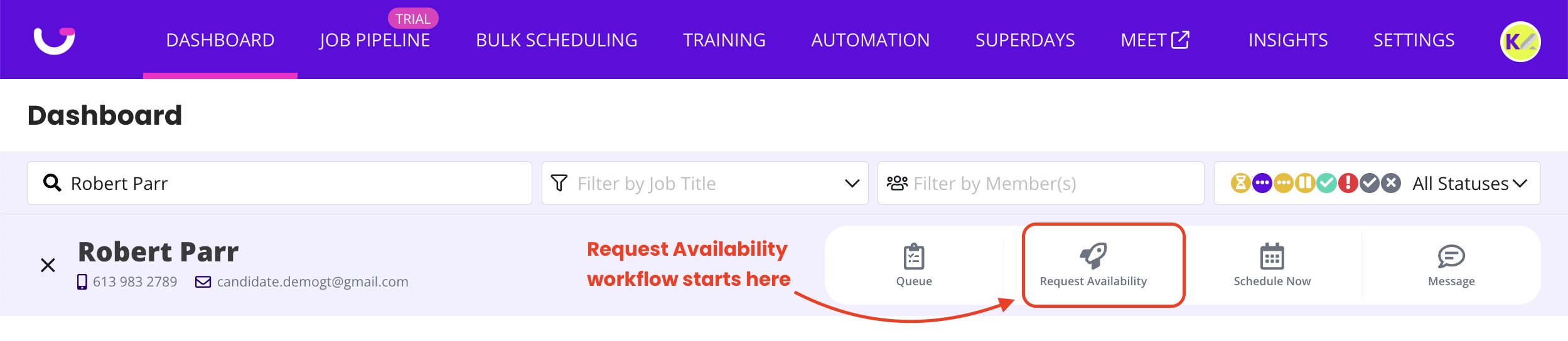
TL;DR: The GoodTime Request Availability workflow is used whenever you want to reach out to a candidate to ask for the specific dates and times they are available to interview. With GoodTime's Request Availability workflow, you also have the opportunity to either:
1) Request candidate availability and 'Automatically Confirm'; allowing GoodTime to automatically schedule the interview based on the candidates availability, or
2) Request candidate availability and 'Require Review'; meaning you can review the candidate's shared availability before scheduling.
The Request Availability workflow allows recruiting teams to collect availability upfront and schedule faster with confidence, helping reduce time-to-schedule and ensuring alignment with your interview team’s calendars.
How To - Request Availability:
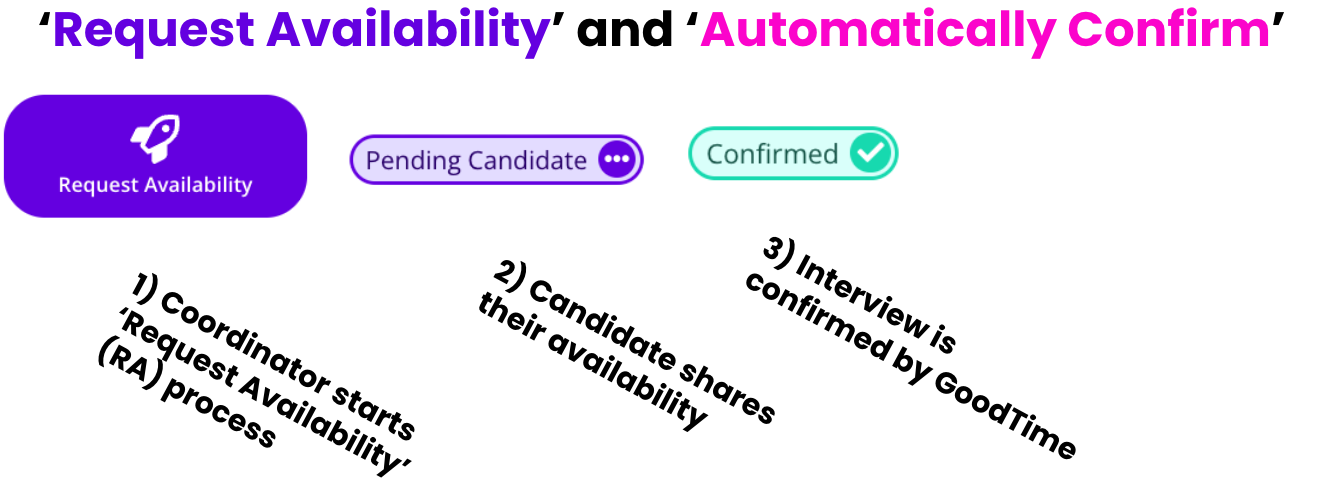
Follow these steps to request candidate availability and 'Automatically Schedule'
Open your candidate in GoodTime.
Click the “Request Availability” rocket button to start the workflow.
Ensure your candidate is in the appropriate job/stage
(this should be automatically imported from your ATS).Select the appropriate interview template (if not already linked).
- For example, a 30-minute recruiter screen with a preferred interviewer.
Confirm or adjust the availability window (e.g., two-week rolling schedule).
NOTE: When automatically scheduling you should verify at this stage that the 'Preview Calendar' is showing ample availability for the candidate to choose from. If limited availability is seen, you should troubleshoot your interview template to increase availability (by adding additional interviewers, adjusting the interview events, or increasing the availability window for instance) before moving forward in the Request Availability process.
Review your Hiring Team: recruiter, coordinator, hiring manager.
Click “Continue” in the top right corner.
Review your email template to the candidate (e.g., with role name, interview type, interviewer).
Confirm once again there are enough Available Interview Slots based on the candidate’s and interviewer’s calendars.
If your template is not already set to 'Automatically Schedule' you can adjust this setting prior to reaching out to the candiate to request their availability
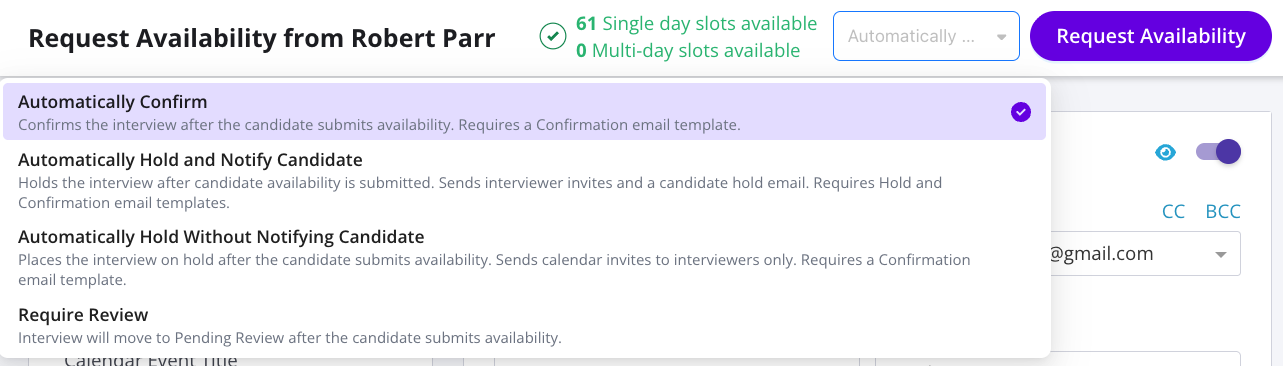
Click “Request Availability”.
Once sent, the candidate will appear in your dashboard under the Pending Candidate Response status until they respond.
When the candidate shares their availability they will be moved to the Confirmed status on the dashboard indicating that they have been scheduled to meet with your interviewers based on the availability they shared.
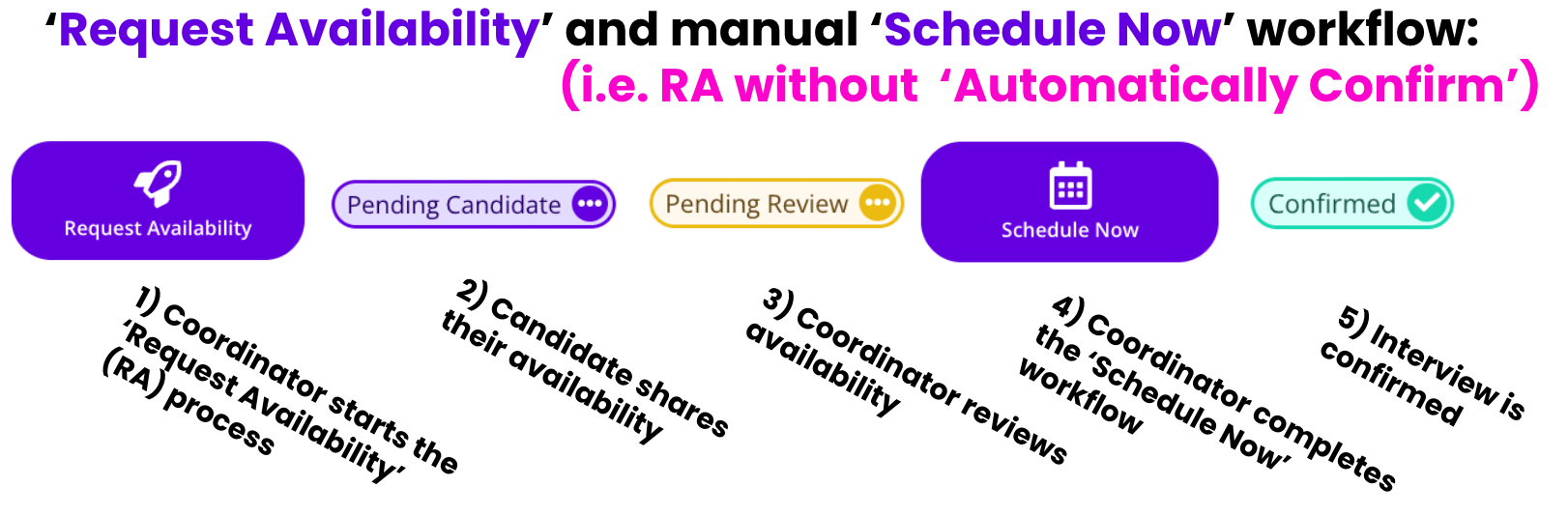
Follow these steps to request candidate availability and 'Require Review'
Open your candidate in GoodTime.
Click the “Request Availability” rocket button to start the workflow.
Ensure your candidate is in the appropriate job/stage
(this should be automatically imported from your ATS).Select the appropriate interview template (if not already linked).
- For example, a 30-minute recruiter screen with a preferred interviewer.
Confirm or adjust the availability window (e.g., two-week rolling schedule).
Review your Hiring Team: recruiter, coordinator, hiring manager.
Click “Continue” in the top right corner.
Review your email template to the candidate (e.g., with role name, interview type, interviewer).
Confirm there are enough Available Interview Slots based on the candidate’s and interviewer’s calendars.
If your template is not already set to 'Require Review' you can adjust this setting prior to reaching out to the candiate to request their availability
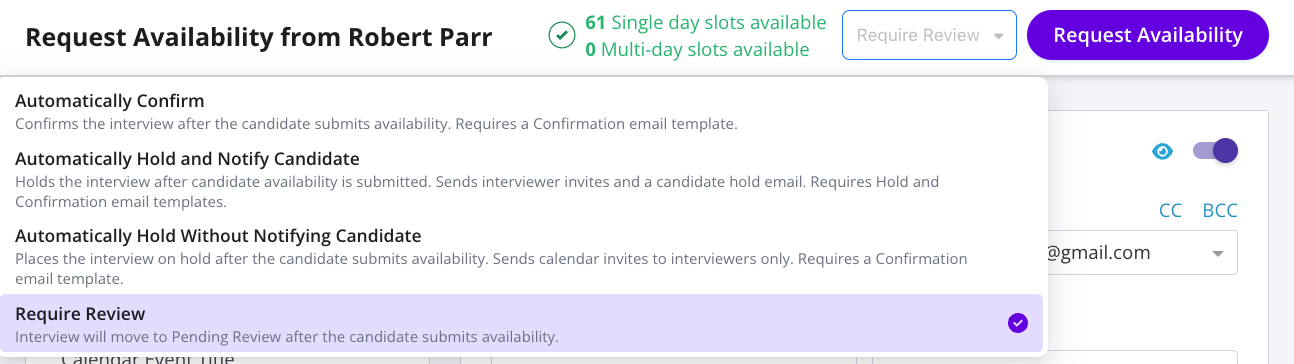
Click “Request Availability”.
Once sent, the candidate will appear in your dashboard under the Pending Candidate Response status until they respond.
When the candidate shares their availability they will be moved to the Pending Review status on the dashboard as a call to action for your scheduler to continue the scheduling process.
Request Availability Minimum Requirement Setting.
GoodTime also provides the ability to 'force' a candidate to provide a minimum amount of availability when going through the Request Availability workflow.
If you activate this feature the default will be to not require candidates to provide a minimum amount of availability, You can then adjust this setting at the company level (which will impact ALL candidates across all roles), or it can be activated at the Interview Template level where you set a unique minimum amount of availability unique to a specific role.

🎥 Please click below to see a video demo of this feature:
Request Availability - Candidate View:
To understand the Request Availability process from a candidates perspective please review the following Help Centre Article: